
A family record connects people who belong to the same household. You can add someone who is already in ChurchTrakr or create a new person while adding them to the family.
Open the family
- Open Families and navigate to the family you want to update.
- Click the blue button titled Add Member.
The Add Member to Family window gives you two choices: Existing Person and Create New.
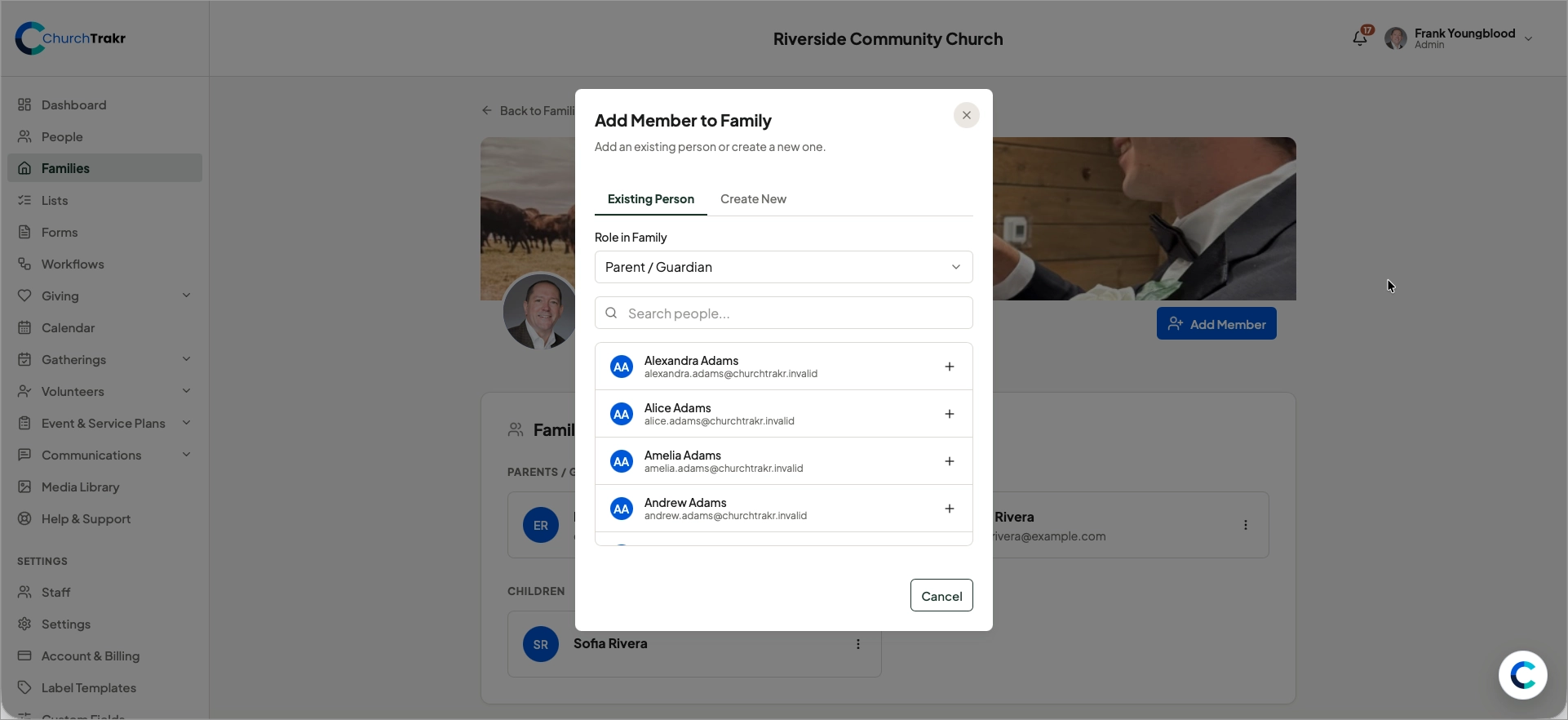
Add an existing person
- Select the Existing Person tab.
- Under Role in Family, select one of the following:
- Parent / Guardian
- Other Adult
- Child
- Use Search people to find the person.
- Select the plus button beside their name.
Only people who are not already connected to another family are available in this list.
Create and add a new person
- Select the Create New tab.
- Choose the person’s Role in Family.
- Enter their first and last names.
- Optionally enter an email address. NOTE, if a person doesn’t have at least an email address in their profile, they may miss communications from the church.
- Select Create & Add.
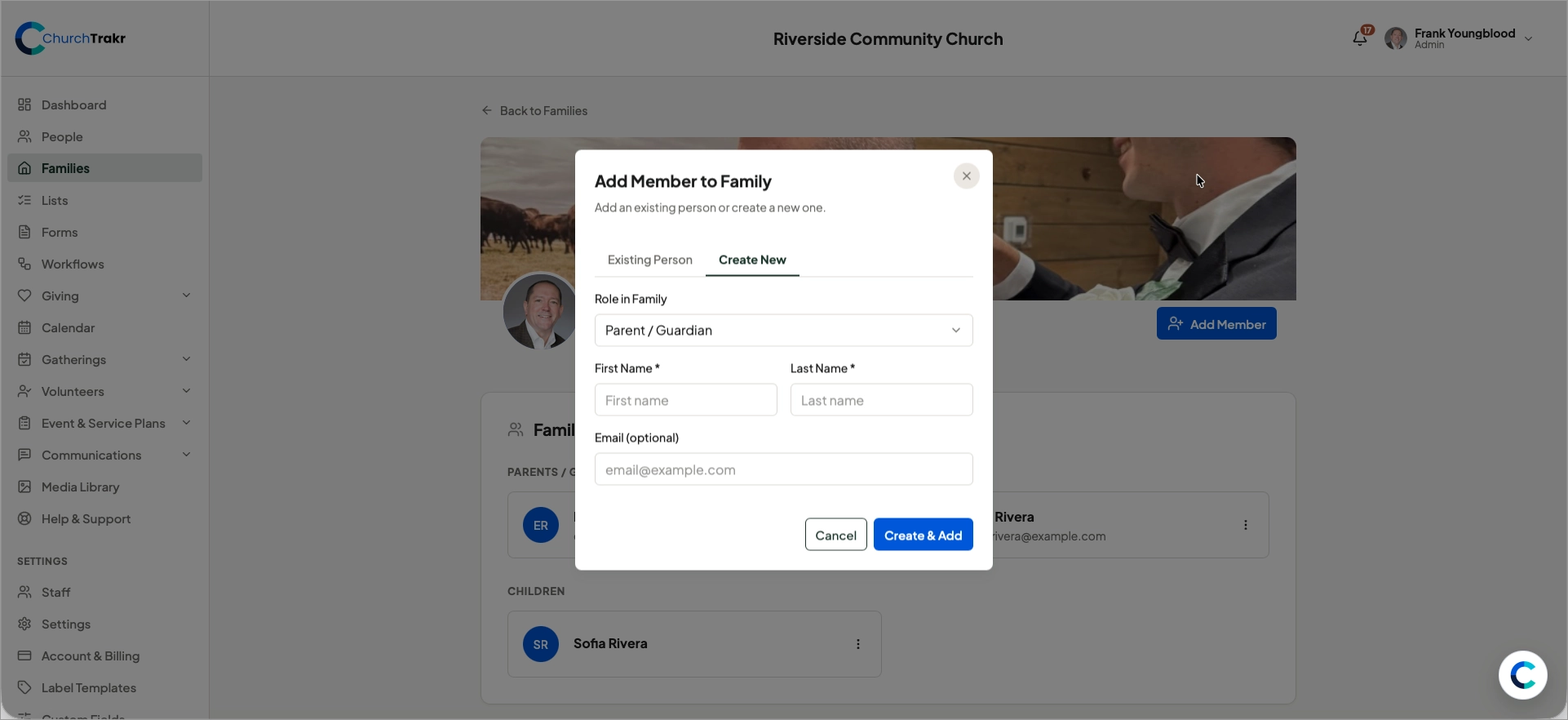
ChurchTrakr creates the person with a status of Guest and immediately connects them to the family. Open their new profile afterward to add phone numbers, address information, membership details, tags, and other fields.
If you cannot find the person
If an existing person does not appear in search results, they may already belong to another family. Open that person’s profile and review their current family before creating a duplicate record.