
Merge fields personalize workflow emails, text messages, and staff notifications using information already stored in ChurchTrakr.
Insert a merge field
- Open a workflow and expand an email, SMS, or notification step.
- Place your cursor where the personalized value should appear.
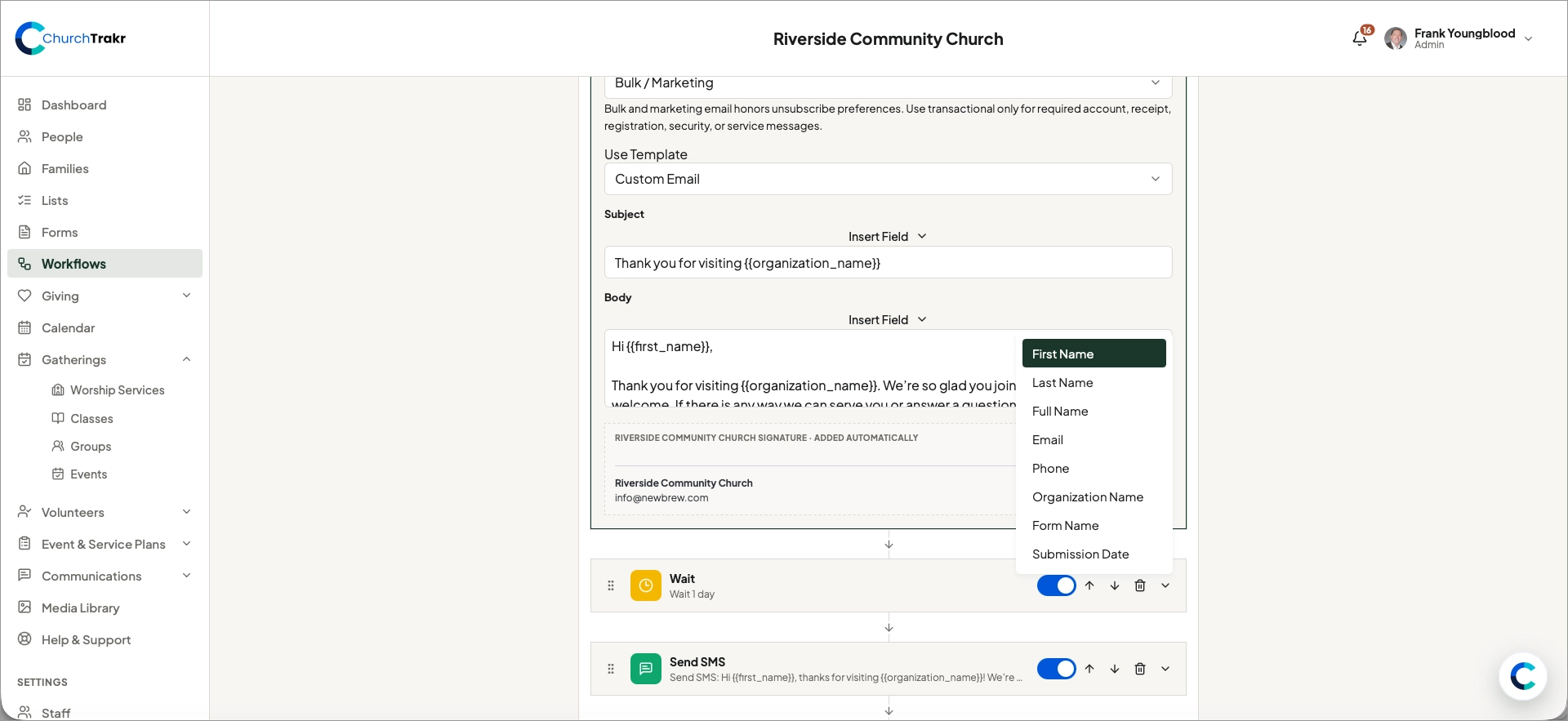
- Select Insert Field.
- Choose the field you want to add.
- Preview the surrounding message and save the workflow.
Available information
Supported fields include first name, last name, full name, email, phone, organization name, form name, and submission date.
Merge fields appear as placeholders such as while editing. ChurchTrakr replaces the placeholder with the person’s information when the step runs.
Tip: Write messages that still read naturally when an optional profile field is unavailable.