
Workflow steps run from top to bottom after the selected trigger occurs.
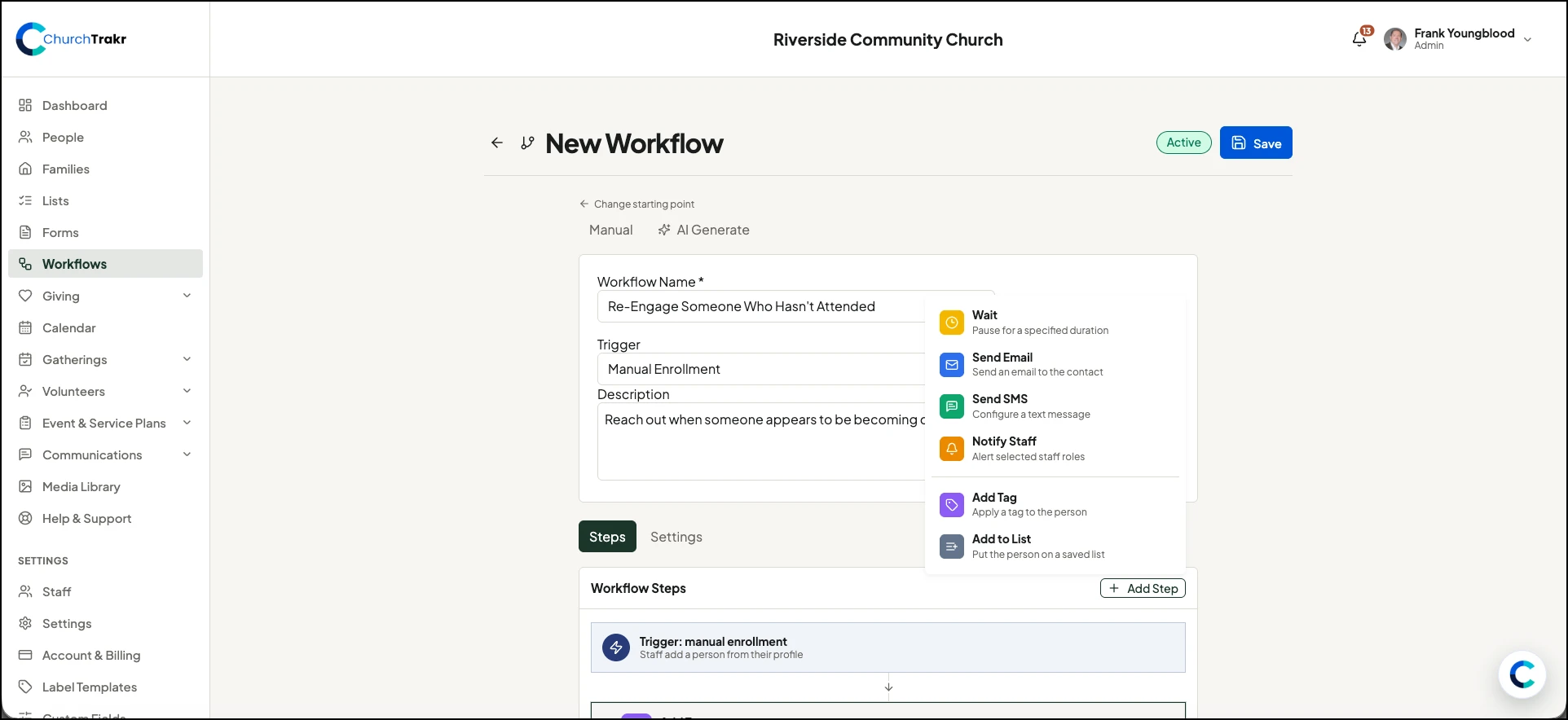
Available step types
- Wait: pause for a number of minutes, hours, days, or weeks.
- Send Email: send a custom email or use an email template.
- Send SMS: prepare a text message up to 160 characters.
- Notify Staff: alert selected roles or specific staff members.
- Add Tag: apply a tag to the person.
- Add to List: add the person to a saved list.
Manage the sequence
- Select Add Step and choose an action.
- Expand the step and complete its settings.
- Use the up and down controls to change its position.
- Use the step switch to disable it without deleting it.
- Use the delete control to remove it.
- Save the workflow.
If a named tag or list does not exist, ChurchTrakr can create it automatically when that step runs.
