
Class enrollment connects people in your ChurchTrakr database to a specific class roster.
Enroll a person
- Open Classes and select the class.
- Find the enrollment or roster section.
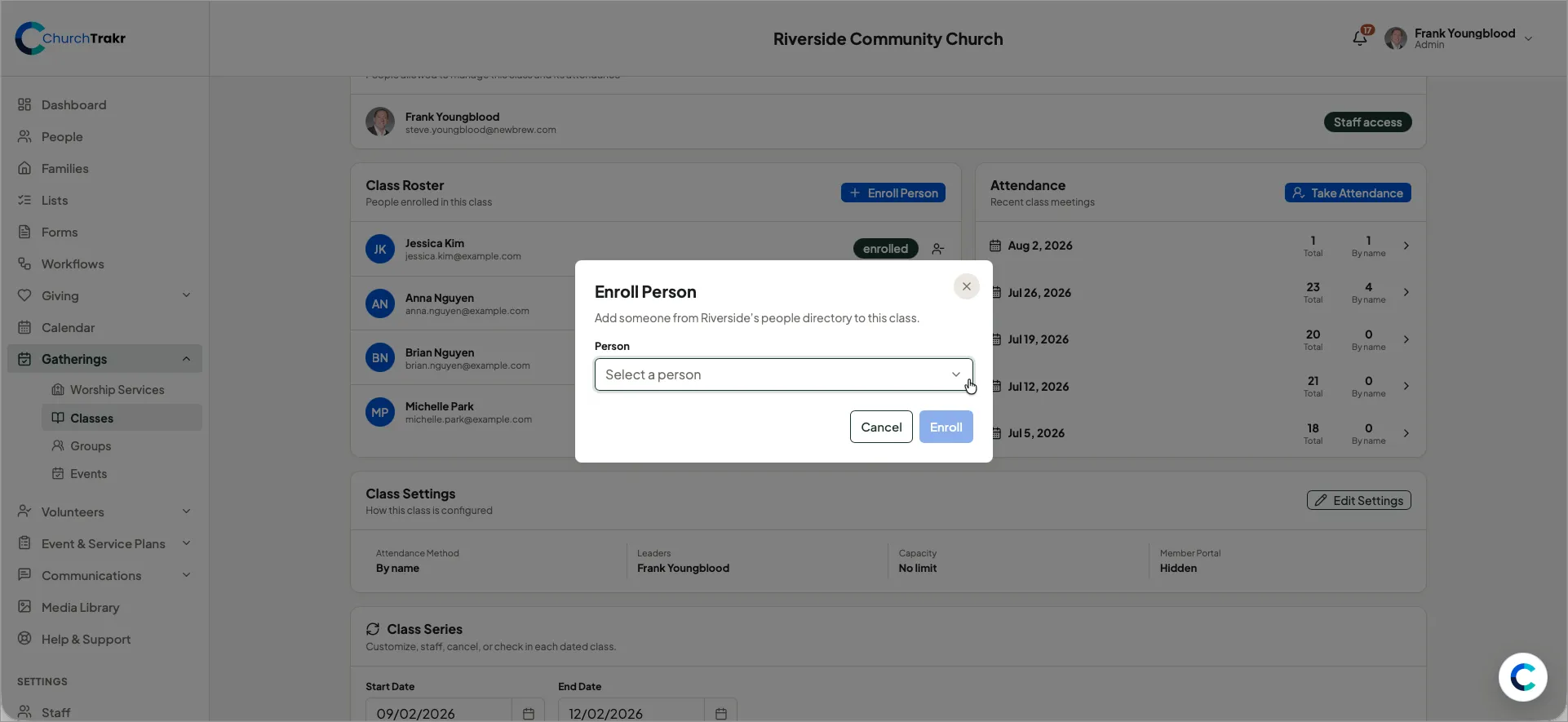
- Click the blue blue “Enroll Person” button.
- Search the people directory and choose the person.
- Confirm the enrollment by clicking the blue “Enroll” button.
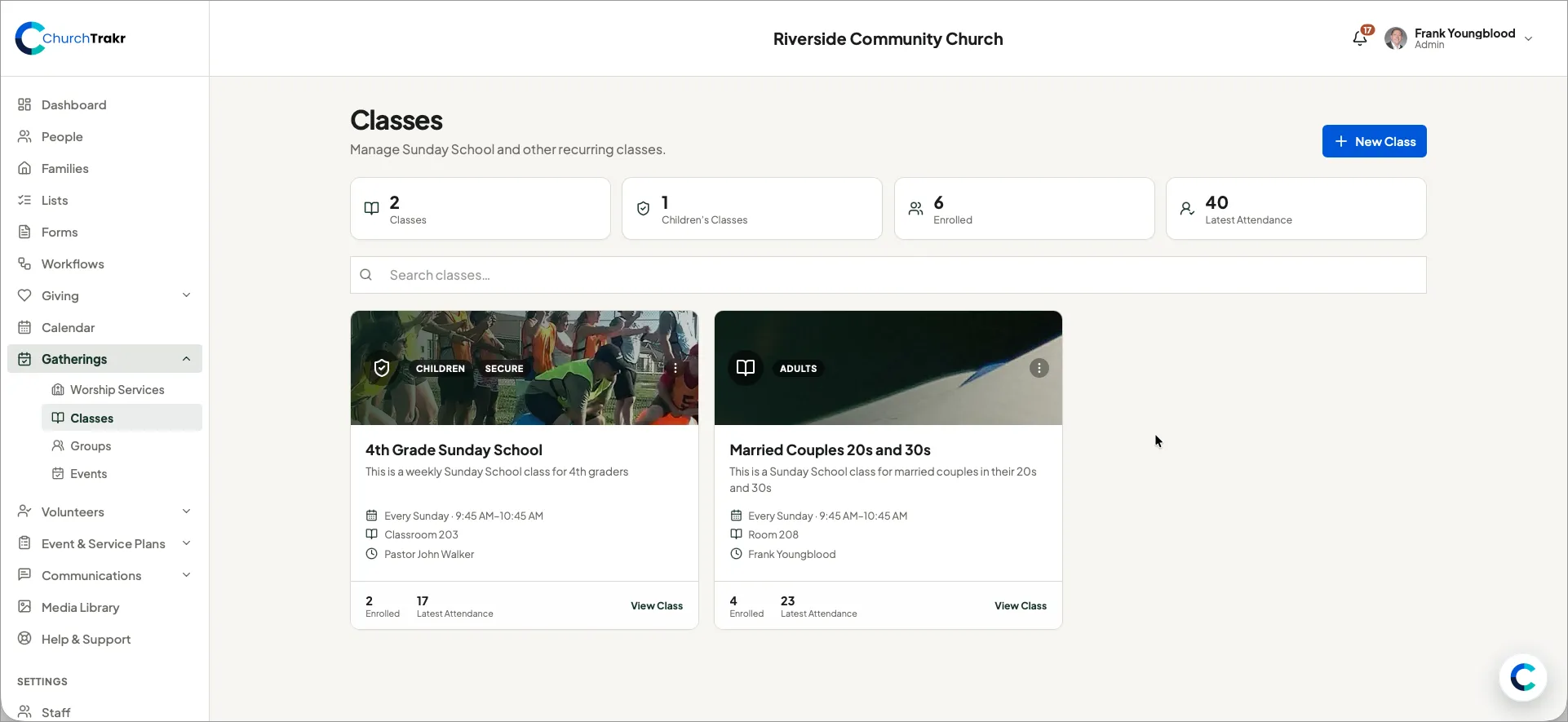
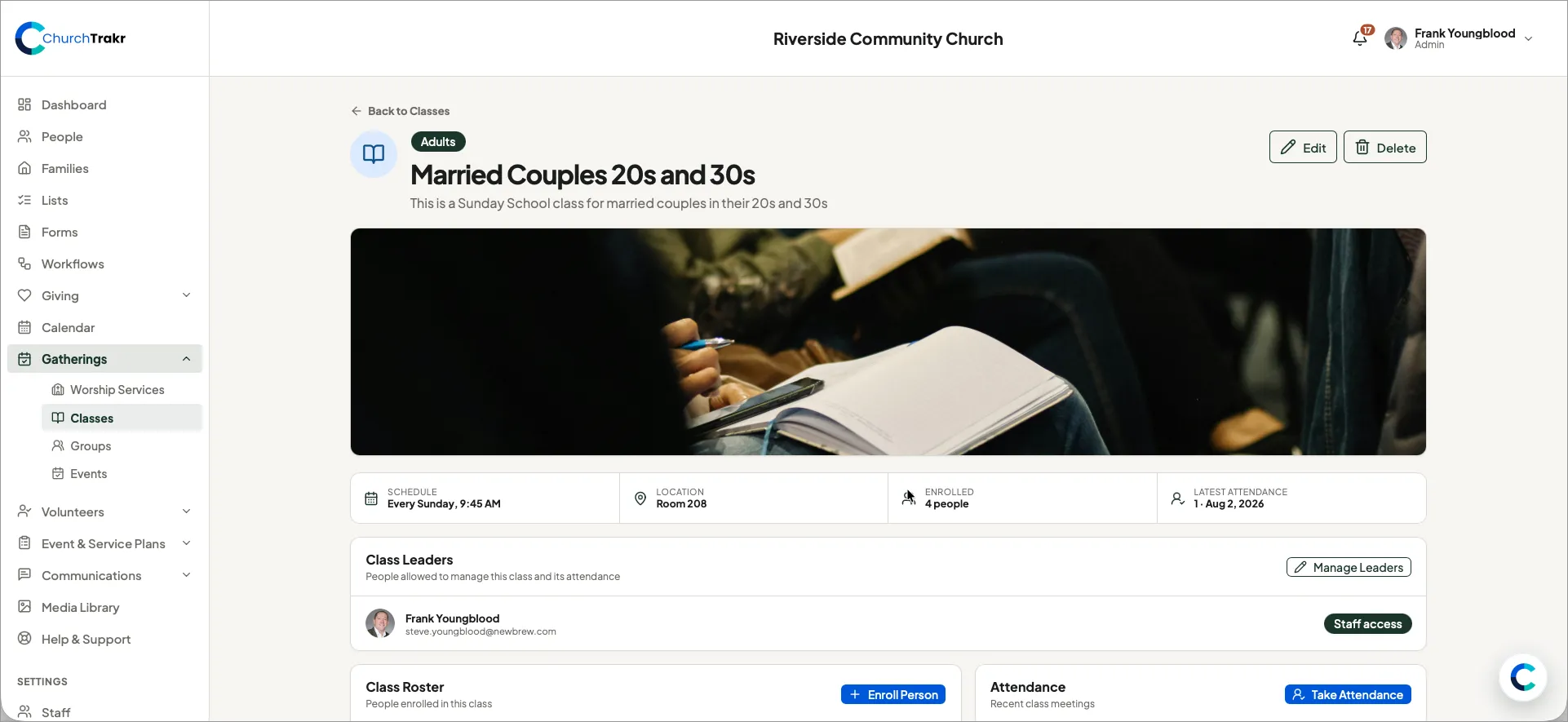
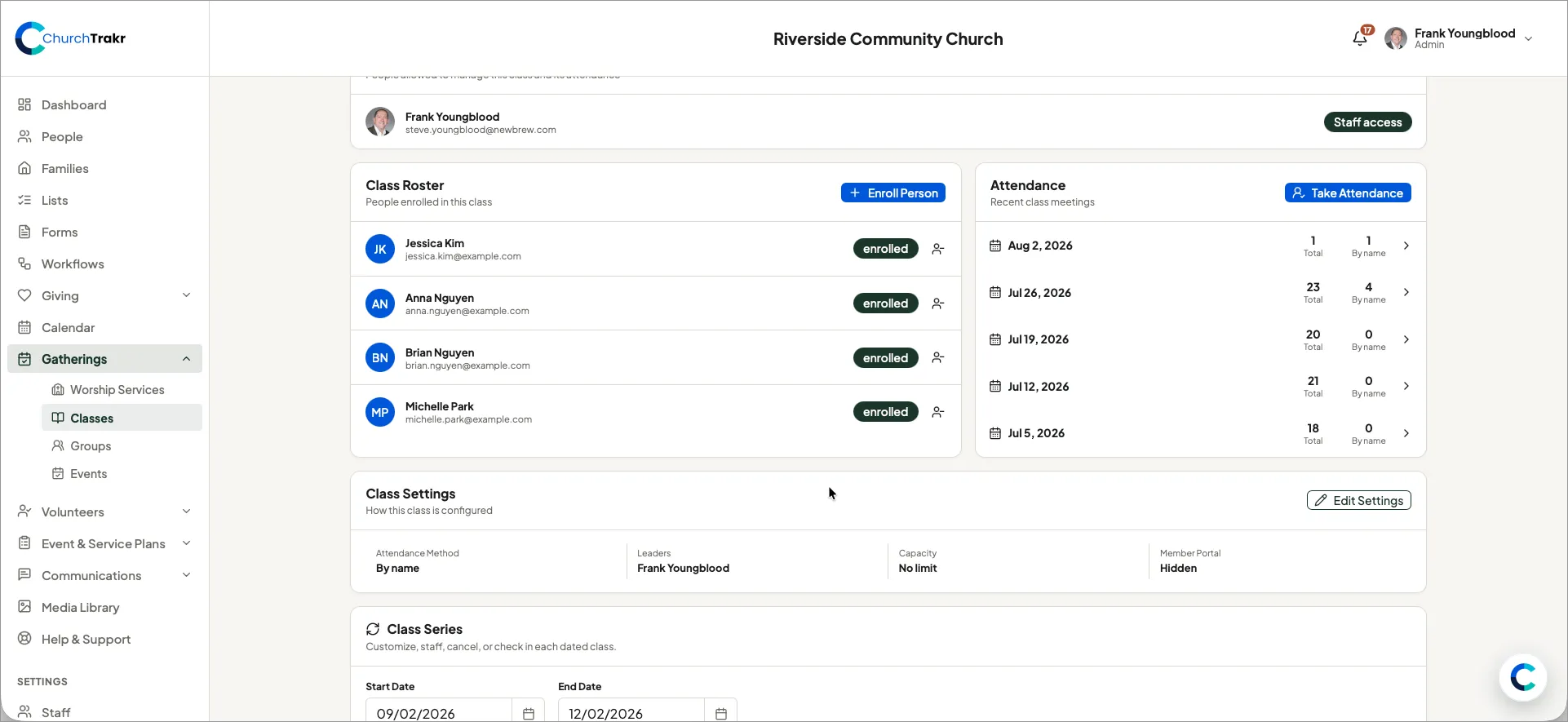
The class details page shows the current enrollment count below the banner and roster in the Class Roster section. If the class has a capacity, compare that capacity with the number enrolled before adding more people.
Remove an enrollment
Open the person’s options in the class roster and choose the remove action icon after the “enrolled” badge. Removing an enrollment does not delete the person or their profile from ChurchTrakr.
Allow portal requests
Edit the class and turn on Show in Member Portal when members should be able to see it and request enrollment. You can find this setting at the bottom of the Edit Class page.